
PPCine APK for Android TV, Smart TV & FireStick – Download Guide
PPcine APK for Android TV lets you enjoy movies, TV shows, and other streaming content on compatible Android TV devices, Fire TV Stick, and Android TV boxes. This guide explains device compatibility, installation methods, ARM vs. ARM64 builds, common setup issues, and the best alternatives for Samsung Tizen and LG webOS TVs—all in one place for 2026.
Version: 4.3.5
Updated: July 2026
File size
~40 MB
Platform
Android TV
Cost
Free
- On this page
- ✓ Will PPCine Work on Your TV?
- ✓ What’s New
- ✓ Device Compatibility
- ✓ ARM vs. ARM64
- ✓ Android TV Installation
- ✓ FireStick Setup
- ✓ FAQ
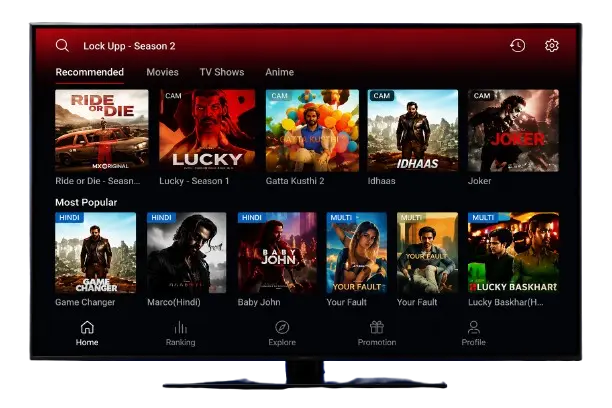
Will the PPCine APK for Android TV Work on Your TV
This is the question that trips up almost everyone, and it has nothing to do with how expensive or new your TV is. It comes down to one thing: does your TV run Android underneath or a closed system like Tizen (Samsung) or webOS (LG)?
If it’s Android-based—most Sony, Mi, TCL, Realme, and Nokia TVs, plus any Android TV box or FireStick—PPCine can be sideloaded directly. If it’s Tizen or webOS, no APK will ever install, no matter what settings you change. That’s a platform limit, not something broken on your end.
What’s New in v4.3.5
4.3.5 | Jun–Jul 2026 | Improved playback stability on Android TV builds, refreshed catalog indexing |
4.3.4 | Q1 2026 | Added multi-language subtitle switching, fixed low-RAM crash on TV boxes |
4.3.x | Late 2025 | Introduced offline downloads and a quality selector |
Why this matters: older builds are more likely to hit the “installs but won’t open” issue on newer Android TV firmware. If a download page is still serving anything before 4.3.x, that’s a signal to look elsewhere.
Device Compatibility at a Glance
Android TV | Sony, Mi, TCL, Realme, Nokia | Yes. | Direct sideload via the Downloader app |
Android TV Box | Mi Box S, Nokia Box, generic boxes | Yes, the best option | Most reliable performance overall |
Fire TV Stick | Lite, 4K, 4K Max | Yes, with sideloading. | Needs a downloader app, a few extra taps |
Chromecast with Google TV | HD and 4K | Limited | Sideloading is possible but fiddly; it’s not beginner-friendly. |
Samsung Smart TV | Any Tizen model | No | A closed OS blocks all APK installs. |
| LG Smart TV | Any webOS model | No | A closed OS blocks all APK installs. |
ARM vs. ARM64: Which Build Do You Need?
This is the part most guides mention in passing but never actually explain. Android devices run on one of two processor architectures, and installing the wrong one is the #1 cause of “installs but won’t open” or a blank black screen.
ARMv7 (32-bit) | Older or budget TV boxes, cheap FireStick clones | Install CPU-Z or AIDA64 from the Play Store and check “Instruction Set.” |
ARM64 (64-bit) | Most 2022+ Android TVs, Mi Box S, and the newer Stick 4K | Same tool—if it lists arm64-v8a, use the ARM64 build. |
NOTE: If you’re not sure and can’t check, ARMv7 builds generally also run on ARM64 hardware (though slightly less efficiently)—so when in doubt, the 32-bit build is the safer first try.
Installing on Android TV
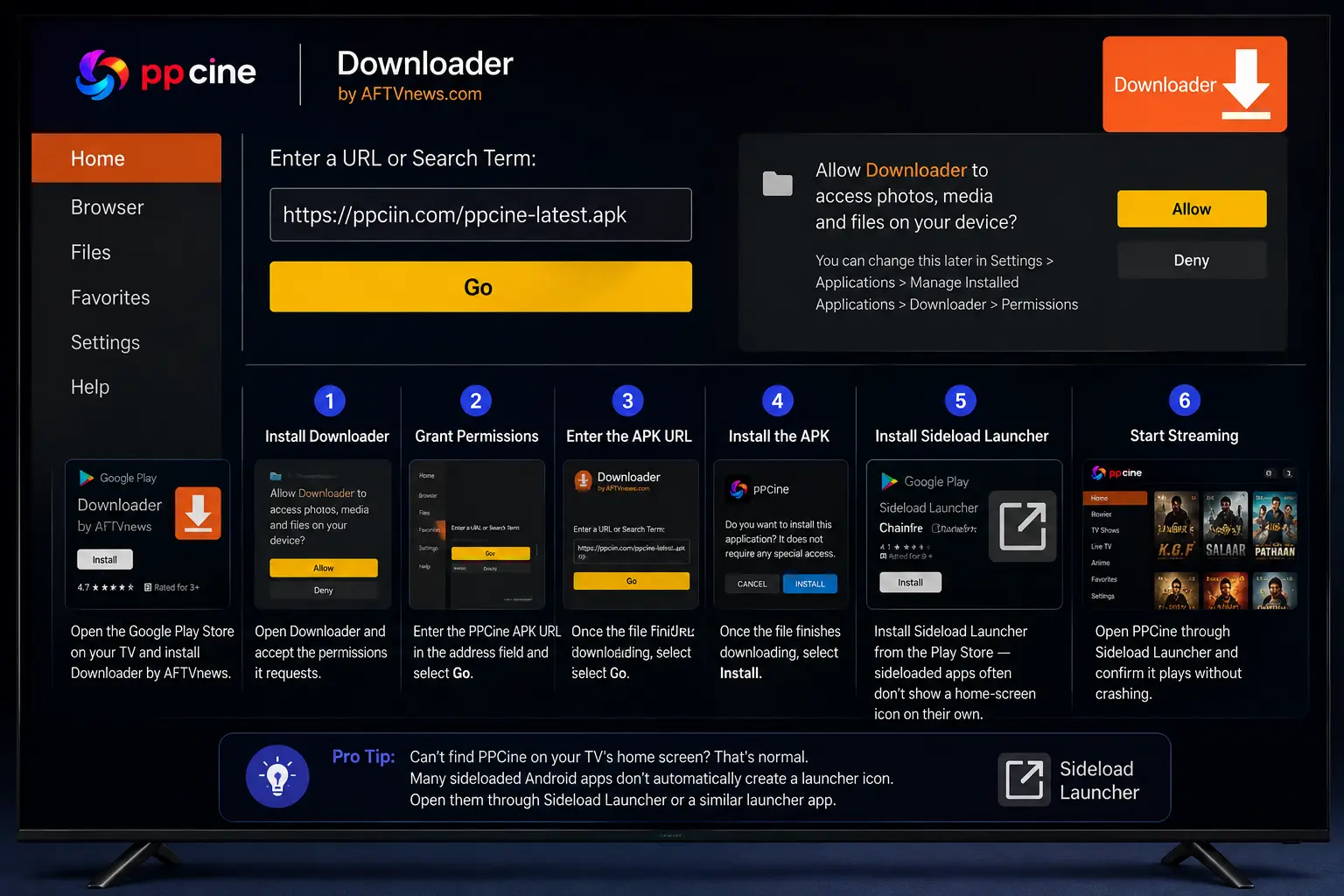
If you’re looking to download the PPCine app APK for TV, make sure your device runs Android TV or another compatible Android-based system. PPCine APK for Android TV works on Sony Bravia, Mi TV, TCL, Realme, OnePlus, Vu, and Nokia Android TV models. The installation process is simple and can be completed using the Downloader app.
- Open the Google Play Store on your TV and install Downloader by AFTVnews.
- Open Downloader and accept the permissions it requests.
- Enter the PPCine APK URL in the address field and select Go.
- Once the file finishes downloading, select Install.
- Install Sideload Launcher from the Play Store—sideloaded apps often don’t show a home-screen icon on their own.
- Open PPCine through the Sideload Launcher and confirm it plays without crashing.
Installing on a TV Box (USB or Wireless)
Two easy methods to install the PPCine APK on your TV box
1. USB METHOD
Download the PPCine APK on your phone or PC.
Copy the APK file to a USB drive.
Plug the USB into your TV Box and install the APK.
2. WIRELESS METHOD
Install “Send Files to TV” on your phone and TV Box.
Select the PPCine APK and send it to your TV Box.
Open File Manager on your TV Box and install the APK.
Recommended Android TV boxes
Mi Box S 4K
- Smooth performance
- Reliable & Stable
- Great overall experience
Realme 4K Stick
- Affordable
- Easy to use
- Good for everyday use
Nokia Streaming Box
- Clean Android UI
- Stable performance
- Good build quality
4GB RAM Clone Boxes
- Poor build quality
- Frequent overheating
- Unstable software updates
Samsung, LG & Other Non-Android TVs
Tizen (Samsung) and webOS (LG) are closed platforms by design—no APK, workaround, or “hidden developer menu” changes that. Two real options if this is your TV:
Two real options if this is your TV
Screen Mirroring
Cast from your phone (where PPCine is installed) directly to the TV.
- ✔ Works with zero extra hardware
- ✔ Easy & quick setup
- ✔ Watch instantly
- ✖ Quality can dip slightly
- ✖ Small delay may occur
Add an Android Stick or Box
Plugging in a Fire TV Stick, Android TV Stick, or Chromecast with Google TV gives your TV full Android app support through the HDMI port.
- Install PPCine APK directly
- Smooth, high-quality playback
- No delays or limitations
- Most reliable long-term solution
- Usually costs less than $30
For regular PPCine use, an Android TV Stick or Fire TV Stick offers the best performance and compatibility.
What Permissions PPCine Asks For on TV
| Storage | Saves offline downloads and cache | Normal |
| Network | Required for streaming | Normal |
| Run at startup. | Resumes background downloads | Optional |
| Contacts / SMS | No streaming function needs this. | Reject/find another source. |
| Device admin | Never required for a media app | Reject/find another source. |
Verifying the File Before You Install
Follow these quick steps to make sure your APK is safe before installing.
Check the file size
Around 40 MB is normal. A file well outside that range deserves a second look.
Scan on VirusTotal
If you downloaded it on a phone or PC first, scan it on VirusTotal before transferring it to the TV.
Confirm the version
Confirm the version shown during install matches the changelog above (4.3.x).
Read the permission prompt
Read the permission prompt on-screen rather than tapping through it automatically.
After Install: Player Swap & Real-Debrid
Optimize your settings for the best streaming experience.
1. Switch the Default
Video Player
The built-in player works, but VLC or MX Player handle subtitles and audio sync better.
- Better subtitle support
- Better audio sync
- Smoother playback experience
2. Real-Debrid
(Optional)
Free streaming links can be slow or crowded during peak hours. Linking a Real-Debrid account unlocks faster and more stable streaming sources.
- Faster premium streaming links
- Less buffering during peak hours
- Better HD & 4K playback quality
Pro Tip:
If you stream regularly, using VLC or MX Player with Real-Debrid provides the smoothest and most reliable viewing experience.
Data Usage by Streaming Quality
Useful to know before you stream on a capped connection or weak Wi-Fi band:
| 360p11. Data | ~0.3 GB | Basic Wi-Fi, mobile hotspot |
| 720p HD | ~0.9 GB | 5 GHz Wi-Fi |
| 1080p Full HD | ~1.6 GB | 5 GHz Wi-Fi or Ethernet |
| 4K (where available) | ~3–7 GB | Wired Ethernet is strongly recommended. |
Fixing Common Errors
Running into issues? Here’s how to fix the most common problems quickly
Parsing Error During Install
Wrong CPU architecture. Recheck with CPU-Z or AIDA64 and install the matching ARMv7 or ARM64 build (see section 04).
Solution:
Install the correct ARMv7 or ARM64 build.
Check your CPU using CPU-Z or AIDA64.App Installs but Shows a Black Screen
Usually caused by a video codec conflict with the default player. This prevents videos from loading correctly after installation.
Solution
Switch to VLC or MX Player.
Open PPCine → Settings → Default Player and select VLC or MX Player for better subtitle, codec, and audio compatibility.App Installed but No Icon on the Home Screen
This is normal for many Android TVs when apps are installed manually (sideloaded). The app is installed, but it doesn’t appear on the launcher.
Solution
Install Sideload Launcher.
Download Sideload Launcher from the Google Play Store and use it to open PPCine whenever the app icon doesn’t appear on your home screen.Endless Buffering
Streaming keeps buffering or takes a long time to load, even though the app is installed correctly.
Solution
Use a 5 GHz Wi-Fi or wired Ethernet connection.
If Netflix or YouTube work normally but PPCine still buffers, your ISP or device may be limiting third-party streaming traffic.Downloader App Freezes or Won’t Load the Link
The Downloader app may freeze, fail to open the URL, or stop responding while downloading the APK file.
Solution
Use the TV Bro Browser instead.
Install TV Bro Browser and download the PPCine APK directly from your website if the Downloader app is not working properly.Pro Tip:
A stable internet connection makes a big difference. For the best experience, use a 5 GHz Wi-Fi network or a wired Ethernet connection.
Legal Apps Already Built Into Your TV
Something worth knowing before you buy a TV box just for streaming: if your TV runs Tizen or webOS, several licensed, ad-supported apps are already available directly in the Samsung and LG app stores—no sideloading required.
| Tubi | Free (ads) | Yes. |
| Pluto TV | Free (ads) | Yes. |
| Freevee | Free (ads) | Yes (via the Fire TV / Prime Video app) |
These apps offer a smaller content library than PPCine. Still, they install with a single click, require no APK verification, and continue to work without sideloading on Tizen and webOS TVs.
Frequently Asked Questions
Disclaimer: This page is an independent guide and is not affiliated with, endorsed by, or officially connected to the developers of PPCine. It provides installation information and only publicly available links. No subscription, premium tier, or paid membership is sold through this page—treat any such request elsewhere as a scam. © 2026 · Guide last reviewed for v4.3.5